

Dashboards Pro
Dashboards are customizable data visualization spaces where you build charts, metrics, and tables from your work item data. Each dashboard is a canvas of widgets — individual visualizations you configure independently — arranged on a responsive grid.
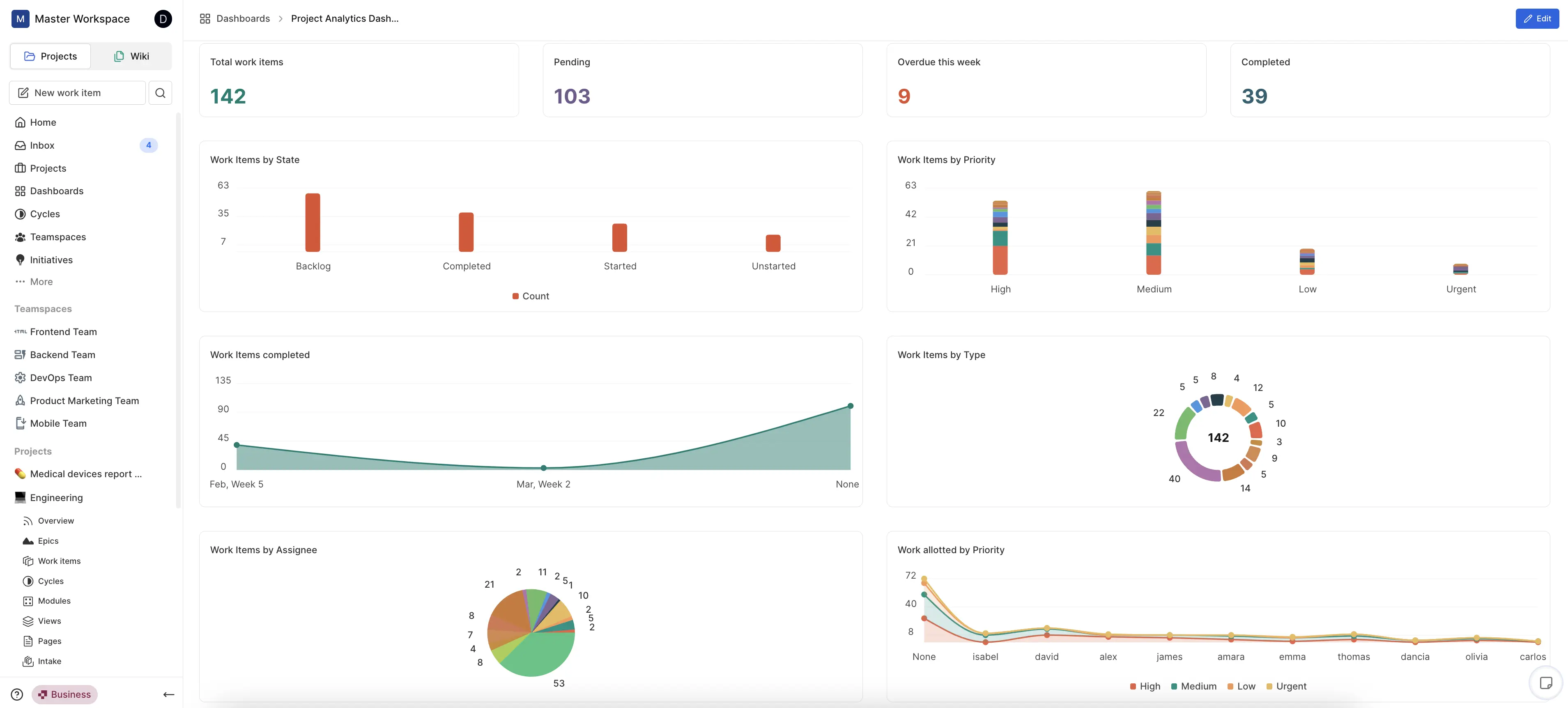
Dashboards do not change any data. They are read-only lenses that aggregate issue data from one or more projects in your workspace and render it as charts or numbers. Every time you open a dashboard, Plane recomputes the data live from the current state of your work items.
Dashboards are workspace-scoped. They are not tied to a single project — each dashboard draws data from a set of projects you choose, which means one dashboard can show work across an entire organization.
Widgets
A widget is a single chart or metric panel on a dashboard. You configure each widget independently with its own chart type, data axes, grouping, and filters. Widgets sit on a shared grid and can be resized and repositioned freely.
Every widget answers a question of the form: "For these work items, grouped by X, what is the count/metric of Y?"
Create a dashboard
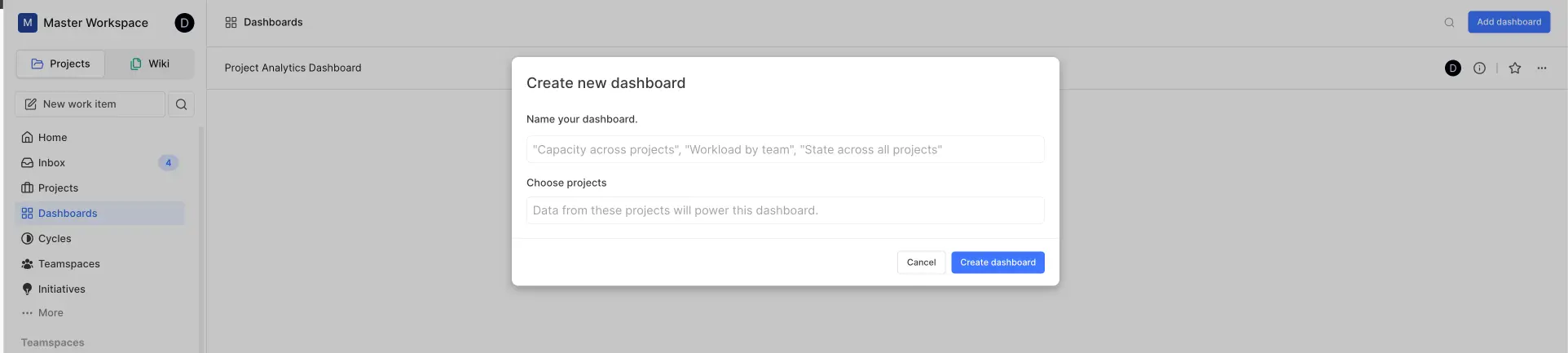
- Navigate to the Dashboards section in the left sidebar.
- Click the Add dashboard button in the top-right corner.
- Give your dashboard a descriptive name (e.g.,
Project Analytics DashboardorWorkload by Team) - Under Projects, select one or more projects whose issues this dashboard should draw data from. All widgets on this dashboard can only see issues from these projects.
- Optionally set filters to restrict the base work item pool for all widgets.
- Click Create dashboard to finish.
Add widgets to a dashboard
Once you've created a dashboard, it's time to add widgets. Widgets are visualization components that display your project data in different formats.
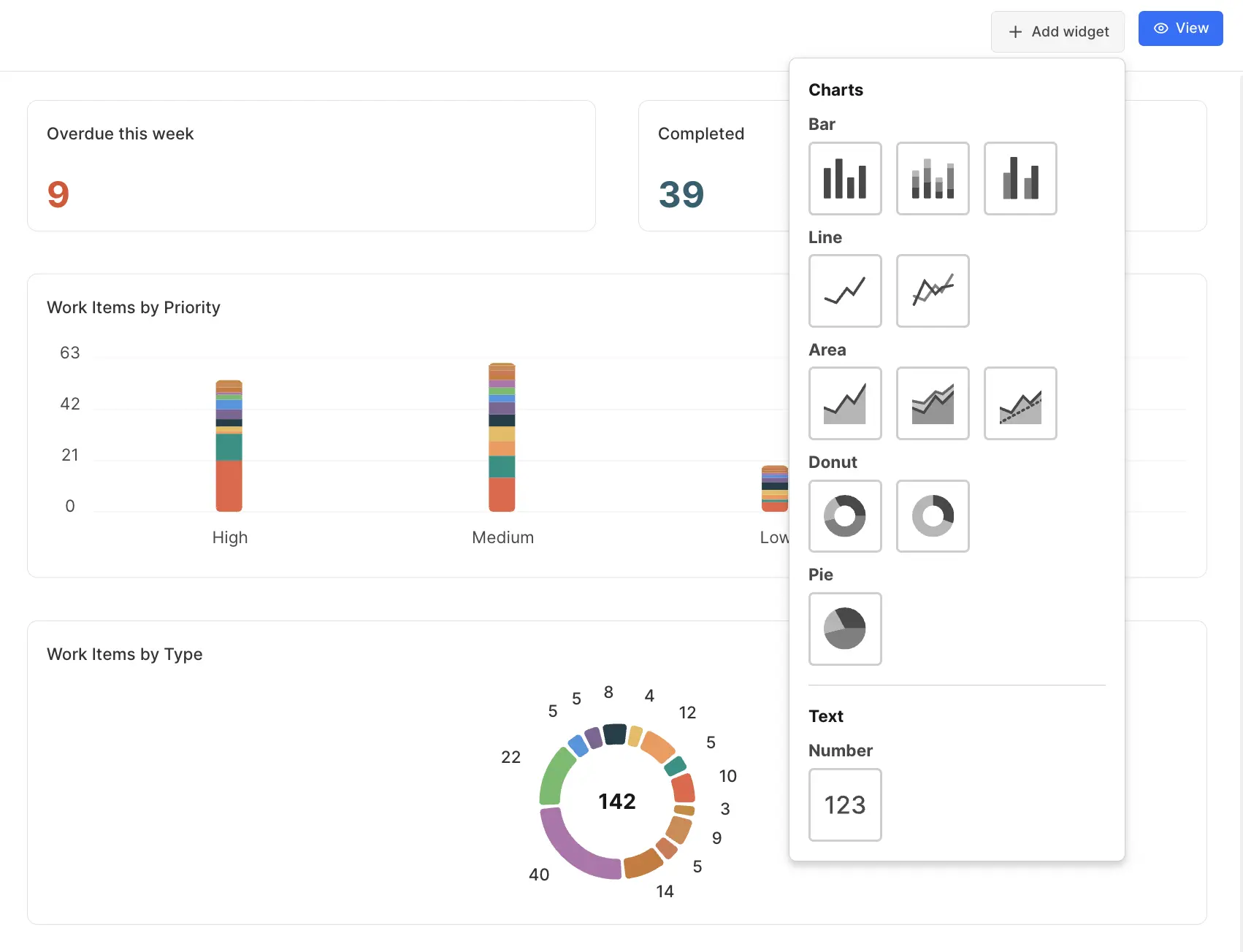
- Open a dashboard.
- Click Add widget in the toolbar.
- In the widget type selector, choose a chart type and model.
- The widget appears on the grid at the next available position.
- The configuration sidebar opens automatically — configure the widget's axes, metrics, and filters (see below).
- Click Save or close the sidebar.
Widget types and models
Each widget type supports one or more models — variations that change how the data series is structured and displayed.
Bar chart
A bar chart plots one value per group as a rectangular bar. Bars can run vertically (categories on the x-axis) or horizontally (categories on the y-axis). It is the most versatile chart type for comparing values across discrete categories — states, assignees, priorities, labels, and so on.
Basic
One bar per group. You pick a single color for all bars. Best used when each group is a distinct, non-overlapping category and you want a straightforward count or metric comparison. Example: number of work items per assignee, or number of work items per priority.
Stacked Business
Each bar is divided into colored sub-segments, one per sub-group value. The full bar height represents the total for that group; the segments show how it breaks down. Best used when you want to see both the total and the composition. Requires a group-by dimension in addition to the x-axis property. Example: work items per assignee, broken down by priority within each assignee bar.
Grouped Business
Each group produces a cluster of side-by-side bars, one per sub-group value. Unlike stacked, the bars are placed next to each other rather than on top. Best used when you need to compare sub-group values against each other across groups, rather than showing a total. Requires a group-by dimension. Example: issues per state, with separate bars per label shown side by side.
Line chart
A line chart connects data points with a line across a continuous or ordered dimension. It is most useful when the x-axis is a date property (start date, due date, created at, completed at) with a date grouping applied, making trends over time legible. It can also be used with categorical dimensions when the ordering of categories matters.
Basic
A single line across all groups. You pick the line color, style (solid or dashed), whether to show data point markers, and whether to smooth the curve. Best for tracking a single metric over time. Example: number of work items completed per week over the last quarter.
Multi-line Business
Multiple lines on the same chart, one per sub-group value. Each line has a distinct color from the selected color scheme. Best for comparing trends across multiple dimensions simultaneously. Requires a group-by dimension. Example: work items created per month, with separate lines per project.
Area chart
An area chart is a line chart with the space beneath the line filled in. The fill communicates volume and cumulative weight more visually than a line alone. It is well-suited to showing how a quantity accumulates or changes over time.
Basic
A single filled area. You can configure the fill color, border line color and style, opacity, whether to show markers, and smoothing. Best for showing one metric over time with emphasis on magnitude. Example: total open work items per month.
Stacked Business
Multiple filled areas stacked on top of each other, so the total height of the chart at any point represents the sum of all series. Each sub-group gets its own color. Best for showing how multiple categories contribute to an overall total over time. Requires a group-by dimension. Example: open work items over time, stacked by state group.
Comparison Business
Two overlapping areas — one representing the primary metric and one a reference or comparison value — displayed with distinct colors and line styles (typically one solid and one dashed). Best for comparing actual versus expected, or current period versus prior period. Requires a group-by dimension. The comparison baseline is rendered with a dashed border by default.
Donut chart
A donut chart is a ring divided into segments proportional to each group's value. The empty center distinguishes it from a pie chart and can optionally display a total count. It is most readable when you have a small number of distinct groups (5–8 at most) with meaningfully different proportions.
Basic
Segments sized by their proportion of the total. You choose a color scheme for the segments. Optionally display the total count in the center of the ring. Best for showing distribution across a small number of categories. Example: work item distribution by priority.
Progress Business
A two-segment ring showing completed versus total. One segment represents completed issues, the other represents remaining. You set the color for the completed segment; the remainder is neutral. The x-axis property is fixed to state groups for this model — it always measures completion by grouping issues into completed versus not-completed state groups. Best for a simple at-a-glance progress indicator. Example: percentage of work items completed in a given set of projects.
Pie chart
A pie chart is a circle divided into slices proportional to each group's value. It conveys the same information as a donut chart but without the center space. It is best when you have a small number of groups and care about the relative proportion more than the absolute count.
Basic
Slices sized by proportion. You can display values on each slice as either a raw count or a percentage of the total. A thin-slice grouping option combines all slices below a configurable percentage threshold into a single "Other" segment, preventing many tiny slivers from making the chart unreadable.
Number
A number widget displays a single large metric value with no chart — just the computed count or metric rendered as text. It is the fastest way to communicate one key figure and works well as a dashboard header or summary widget alongside more detailed charts.
Basic
You configure the text alignment (left, center, or right) and text color. The widget displays the y-axis metric for the full issue set matching the dashboard and widget filters. There is no x-axis property or grouping for number widgets — they compute a single aggregate.
Note: the number widget supports all y-axis metrics except estimate points. If you need an estimate point total as a single number, use a table chart instead.
Table chart
A table chart renders issues grouped by the x-axis property as rows, with a count column. It presents the same data as a bar chart but in a structured grid format rather than a visual chart. It is useful when the precise numbers matter more than the visual shape of the distribution, or when you need to display many groups that would be hard to read as bars.
Basic
One row per group, with a count column. The y-axis metric is fixed to work item count and cannot be changed — table charts always show a raw count. The appearance settings (column color, legend, tooltip) match the bar chart config options.
Configure a widget
Open the configuration sidebar by clicking the widget or by clicking the pencil icon.
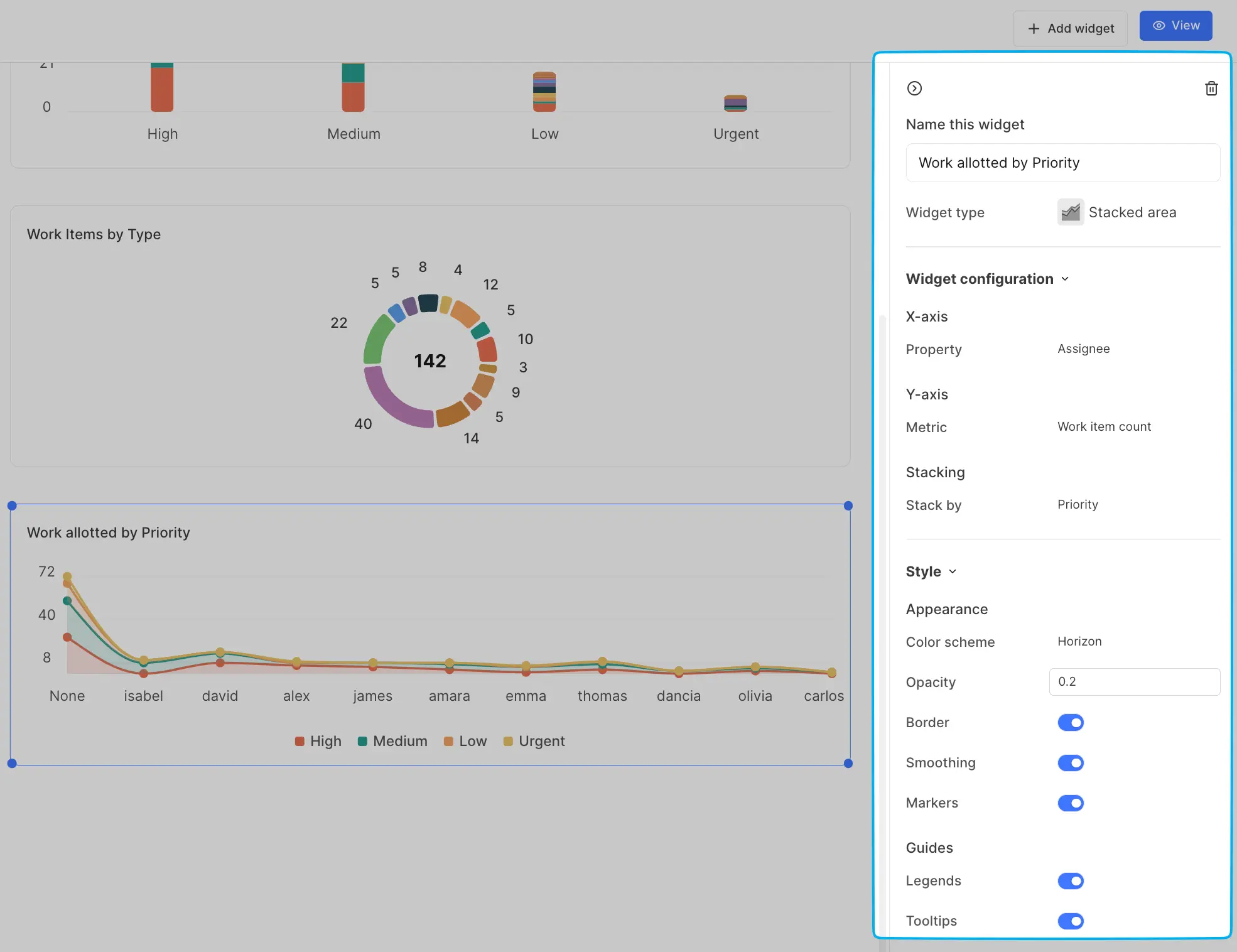
Basic config
- Name - the widget's title as displayed on the dashboard.
X-axis property
What to group work items by along the horizontal axis (or segments for pie/donut).
Options:
- State, State group
- Priority
- Assignees, Created by
- Labels
- Cycles, Modules
- Epics
- Work item types
- Projects
- Start date, Due date, Created date, Completed date
When a date property is selected for the x-axis, you also choose a date grouping: Day, Week, Month, or Year. Plane truncates dates to the chosen granularity and groups work items accordingly.
Y-axis metric
What value to compute per group.
| Metric | What it counts |
|---|---|
| Work item count | Total issues in each group |
| Estimate points | Sum of story points in each group |
| Pending work items | Issues in backlog, unstarted, or started state |
| Completed work items | Issues in completed state |
| In-progress work items | Issues in unstarted or started state |
| Due today | Issues with a due date of today |
| Due this week | Issues with a due date in the current week |
| Blocked work items | Issues that have a blocked-by relationship |
Estimate points require the project to have estimates configured in points mode. If a project does not have estimate points set up, that metric returns zero for work items in that project.
Group by
Adds a second dimension by splitting each x-axis bar or line into sub-series. Available for Stacked, Grouped, Multi-line, and Comparison models. Uses the same options as the x-axis property.
Style config
Appearance options vary by chart type
- Bar chart: color, orientation (vertical/horizontal), legends, tooltip, color scheme
- Line chart: line color, line type (solid/dashed), markers, smoothing, legends, tooltip, color scheme
- Area chart: fill color, line color, line type, opacity, border, markers, smoothing, legends, tooltip, color scheme
- Pie chart: group thin slices toggle, minimum threshold, value type (percentage or count), color scheme
- Donut chart: center value toggle, completed color, color scheme
- Number: text alignment (left/center/right), text color
- Table: same options as bar chart
Filters Widget-level filters narrow the issue data for this widget only, on top of any dashboard-level filters.
Filter layering
Dashboards have two levels of filters that apply to all widget data in a stacked order:
Dashboard-level filters are set once on the dashboard and apply to every widget on it. They restrict the base work item pool from which all widgets compute their data.
Widget-level filters apply on top of the dashboard-level filters and further restrict data for that individual widget only.
When a widget fetches data, Plane applies filters in this order:
- Dashboard-level filters
- Dashboard-level PQL filters
- Widget-level filters
The result is always the intersection — widget-level filters can only narrow, never expand, the work item set defined by dashboard filters.
Triage states and archived and draft work items are always excluded from widget data regardless of filters.
Interact with your dashboard
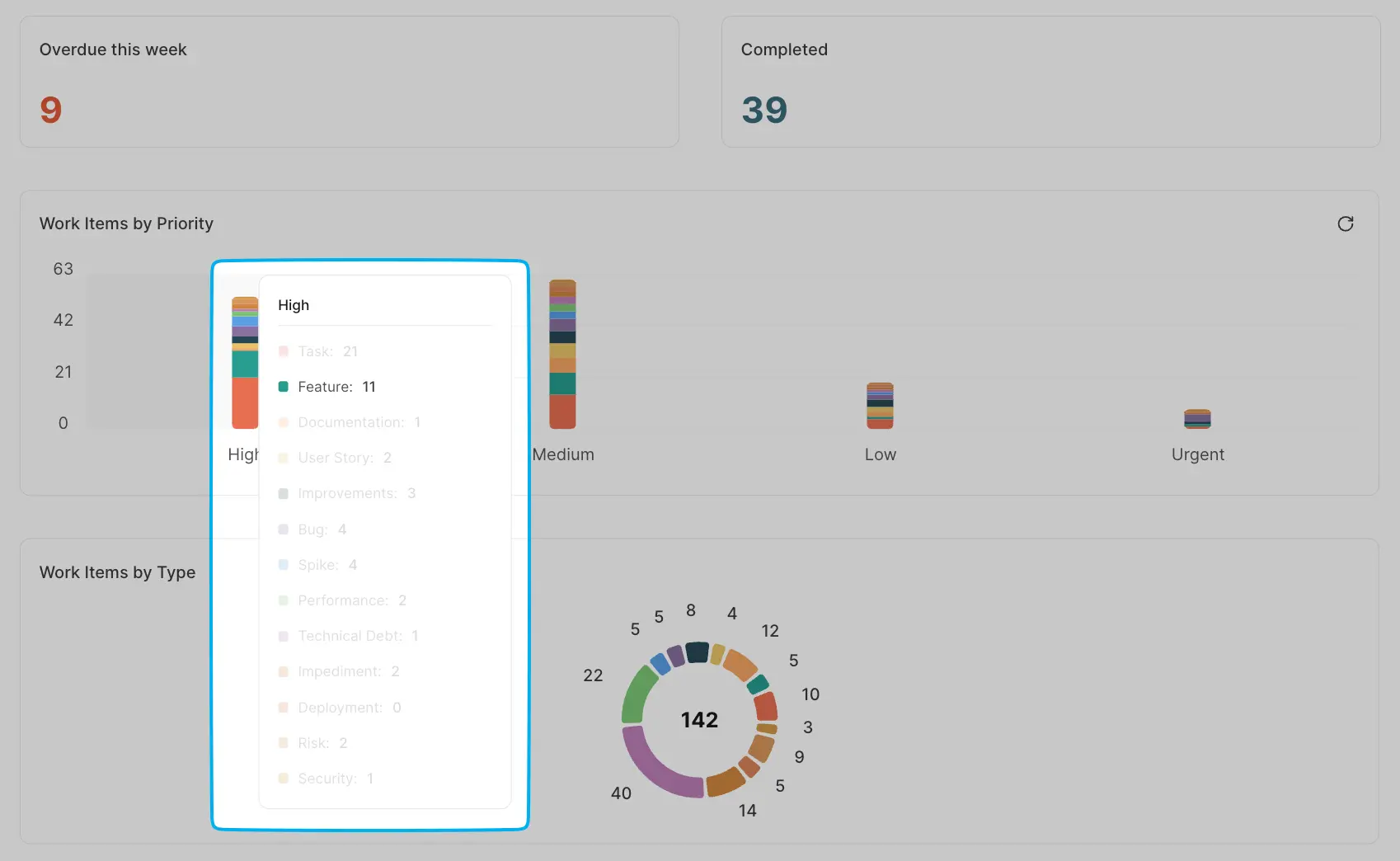
After setting up your widgets, use your dashboard for insights:
- Hover over chart elements to see detailed tooltips.
- Use the legends to identify specific categories.
Export a dashboard
A dashboard can be exported to a PDF file. Each widget is rendered into its export block type:
- Chart widgets (bar, line, area, pie, donut) are captured as PNG images
- Table widgets are exported as structured tables
- Number widgets are exported with their value, text color, and alignment preserved
- Open the dashboard.
- Click the Export button in the toolbar or ... menu → Export.
- Choose orientation (portrait or landscape).
- Click Download.
Plane renders each widget into the PDF. Chart widgets become images; table and number widgets are rendered as structured content. The PDF renderer respects the desktop grid layout and places widgets in their configured positions and sizes across pages.
Resize a widget
- Hover over the widget until the resize handle appears at the bottom-right corner.
- Drag the handle to change the widget's size.
- Release to save the new size. Layout is auto-saved.
Reposition a widget
- Click and hold the widget's header area.
- Drag it to the new position on the grid.
- Release to drop. Other widgets shift to fill the space. Layout is auto-saved.
Delete a widget
- Hover over the widget.
- Click the ... menu → Delete.
- Confirm. The widget is permanently removed.
Add a dashboard to favorites
- In the dashboards list, hover over the dashboard.
- Click the star icon.
Or from inside the dashboard:
- Click the star icon in the dashboard header.
Delete a dashboard
- Go to the dashboards list.
- Click the ... menu on the dashboard → Delete.
- Confirm.
Only the dashboard owner can delete a dashboard.
You can build up to any number of dashboards per workspace. Each dashboard draws from one or more projects you choose and holds any number of widgets. There is no enforced limit on widgets per dashboard, though very large grids become difficult to navigate in practice.
You can visualize work across 7 chart types, each with up to 6 chart models, giving 42 chart type/model combinations. Each widget is independently configured with its own grouping dimension, metric, date grouping (where applicable), appearance settings, and filter expression.